Notifications
Notifications alert your team to fleet events as they happen. Each notification gives recipients enough context to decide, within seconds, whether the situation needs a closer look in FleetControl. Each notification combines a set of event types (specific vehicle events that trigger an alert, such as Smoke Detected or Fault Lamp On) with one or more delivery channels — when a matching event occurs, FleetControl sends it to all configured recipients.
Before You Start⚓︎
To create or edit notifications, your FleetControl user needs the Notification Subscriptions permission set to Read & Write. Read Only gives view access only. See User Management for how to assign permissions.
Create a Notification⚓︎
- Go to Administration → Notifications.
- Select + Add Notification.
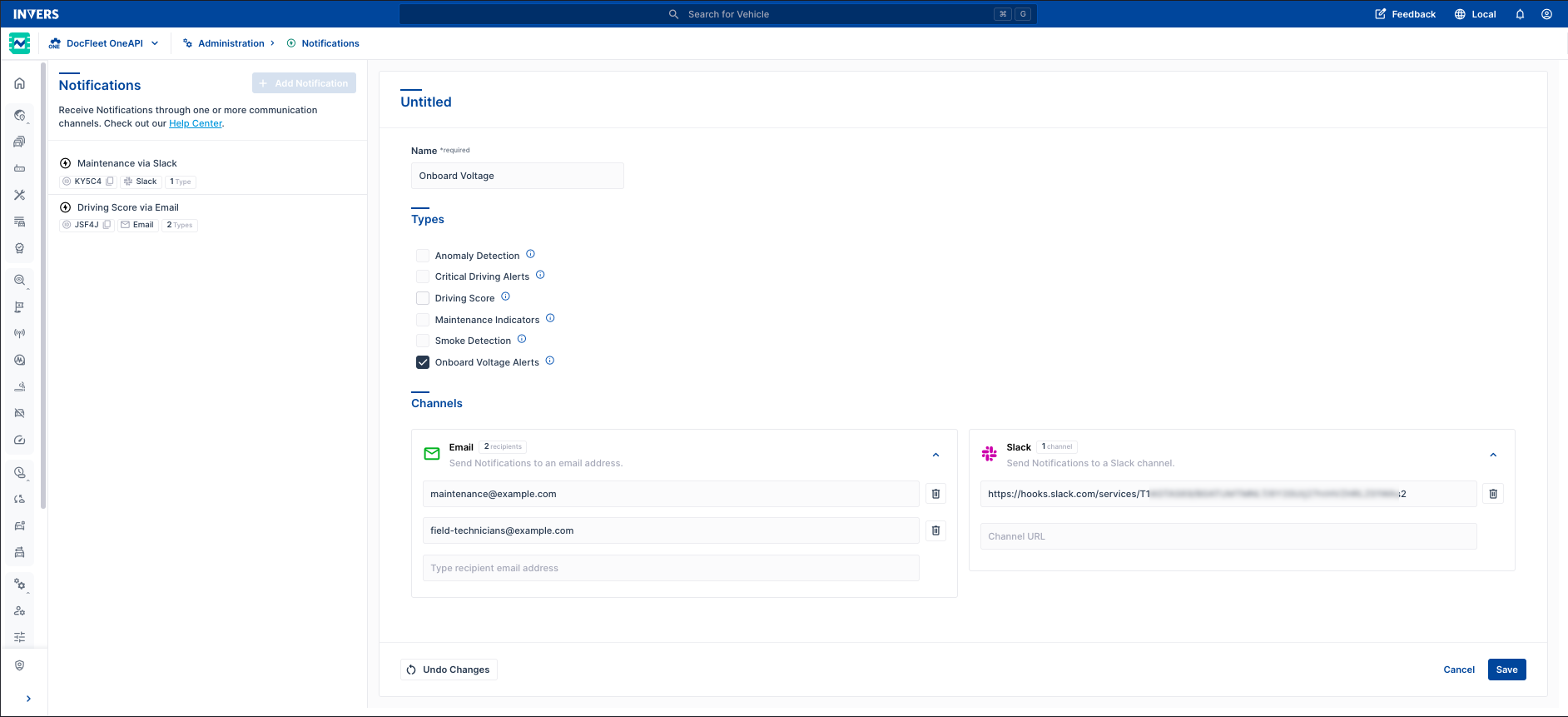
- Enter a Name.
- Under Types, select the event types you want this notification to cover. Available types depend on which features are active for your fleet. If a type you expect is missing, see Troubleshooting.
- Under Channels, configure one or more delivery channels.
- Select Save.
The notification appears in the list and begins delivering notifications immediately. To verify delivery before going live, select Test on each type — see Test a Notification Type.
Channels⚓︎
A notification delivers to any channel that has at least one recipient configured. You can combine multiple channels within the same notification.
Email⚓︎
Enter one or more email addresses. Add each address separately — select the input field, enter the address, and confirm to add it. All addresses receive the alert.
Slack⚓︎
Enter the Webhook URL for the Slack channel that should receive alerts. Treat the webhook URL like a password — it grants posting access to the channel. To create a webhook:
- Go to api.slack.com/apps, create a new app or open an existing one, and enable Incoming Webhooks.
- Select Add New Webhook to Workspace, choose the target channel, and authorize.
- Copy the generated webhook URL and paste it into FleetControl.
Keep the webhook URL confidential — it grants posting access to your Slack channel. For full setup instructions, see Sending messages using incoming webhooks.
Edit and Delete a Notification⚓︎
Select Edit to change the name, notification types, or channel settings, then select Save.
To delete a notification, open the … menu and select Delete.
Test a Notification Type⚓︎
Each type has a Test button displayed after a new notification is saved. Select it to send a test alert to all configured channels. Use this after initial setup to verify delivery before going live.
Troubleshooting⚓︎
A type is missing from the list.
The corresponding feature is not active for your fleet. Contact INVERS Support to activate it.
Slack notifications are not arriving.
Check that the Slack app is still installed and authorized in your workspace and that the target channel still exists. Select Test to confirm delivery.
Related Articles⚓︎
- Smoke Alerts — Manage smoking incidents in your fleet
- Anomalies — Track vehicle anomalies and driving behavior events
- Maintenance Data — Monitor service intervals, warning indicators, and ECU diagnostics across your fleet
- Automation & Workflows — Build custom workflows that react to fleet events using tools like n8n, Make, or Power Automate