Vehicles Overview⚓︎
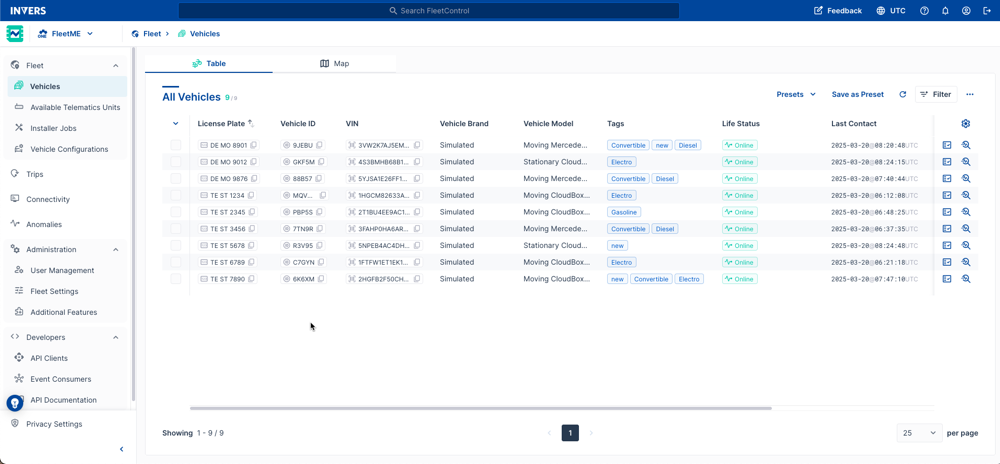
Use the Vehicles page to browse your fleet, filter and segment vehicles, run bulk operations, and open individual vehicles for inspection or commands. The page has two views — Table and Map — that share the same active filter and preset.
Quick start⚓︎
- Go to Vehicles.
- Select Presets and choose All Vehicles or a saved preset.
- Select Filter to open the Filter dialog. See Filtering › How Filtering Works.
- (Optional) Select Save as preset to reuse your filter later.
- Select vehicles (checkbox on each row) to enable bulk operations.
- Switch to Map to see the same filtered set visually.
Filters and presets carry over
Apply a filter in Table, then switch to Map to see the same subset — and vice versa.
Table⚓︎
The table lists all vehicles in the active preset or filter.
Vehicle count⚓︎
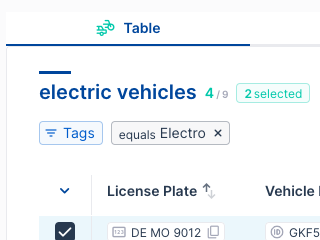
The counter in the table header shows three numbers:
- Filtered: vehicles matching the current filter (visible set)
- Total: all vehicles in your fleet
- Selected: rows currently checked
Table actions⚓︎
- Presets: Load a saved preset. The table header shows the active preset name.
- Save as preset: Save the current filter as a new or updated preset.
- Filter: Open the Filter dialog. Active filters appear as tags above the table.
- Refresh: Pull the latest data (life status, firmware states, configs).
- More actions (⋯):
- Add Vehicle
- Edits:
- Bulk Operations:
- Radius Search
- Export Vehicles (CSV)
- Archive Vehicles
Tip
Most actions in the (⋯) menu are only enabled after you select at least one vehicle.
Column tools 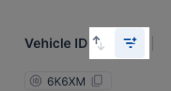 ⚓︎
⚓︎
- Sort: Select a column header to sort. See User Interface.
- Column filter: Select the filter icon on a column to add it to the Filter dialog. See Filtering.
Row tools (far right) 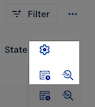 ⚓︎
⚓︎
- Configure Table Columns (⚙️): Customize visible columns. See User Interface.
- Show Events: Opens vehicle Events
- Inspect Vehicle: Opens Inspect
Map⚓︎
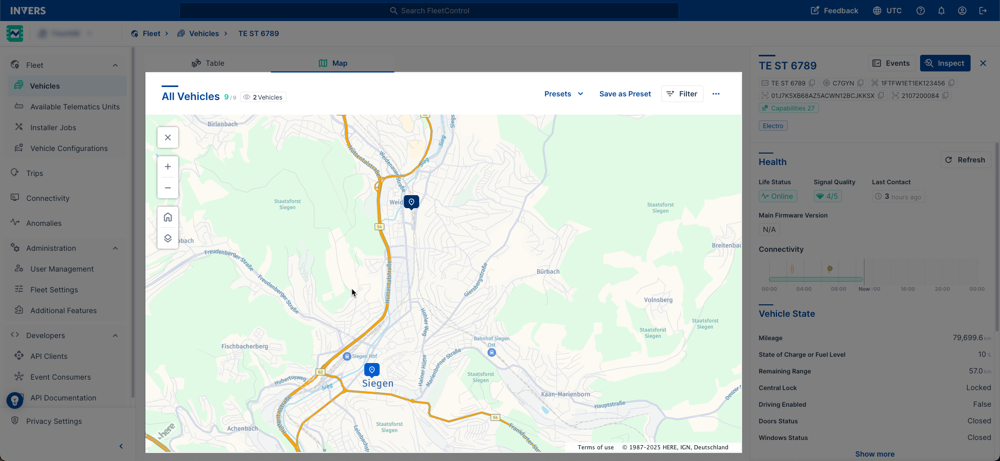
The Map shows your filtered set as clusters and markers. On open, the map fits all shown vehicles. Zoom in to reveal smaller clusters and individual vehicles.
For map navigation controls (zoom, satellite view, POIs, home), see User Interface.
Use satellite view to check parking
Satellite view helps identify vehicles in underground or multistory car parks.
Side panel (vehicle preview)⚓︎
Select a vehicle to open the side panel on the right. It works in both Table and Map views.
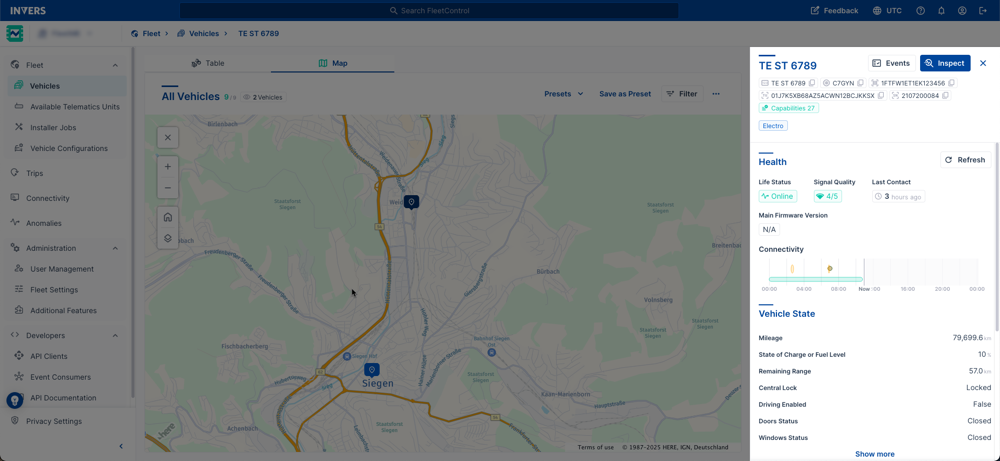
The side panel contains four sections:
- Health — Life Status, Signal Quality, Last Contact, Main Firmware Version, and a Connectivity bar showing the last 24 hours.
- Commands — Remote commands (lock/unlock, enable/disable driving, resets, SIM actions). Available commands depend on the vehicle model and telematics capabilities.
- Vehicle State — Mileage, fuel or charge level, Central Lock, Driving Enabled, Ignition, and Onboard Voltage. Select Show More to expand all reported states.
- Position — Mini-map with last known position, coordinates, and a Live Mode toggle for live refresh.
The header shows copyable tags for the License Plate, Vehicle ID, VIN, and Telematics Unit ID.
For the full vehicle view — including configuration, detailed health history, and event timeline — open Inspect.
Common tasks⚓︎
Find vehicles due for a firmware update⚓︎
Use Filtering › Best Practice Filters (Outdated Firmware), then More actions (⋯) → Bulk Operations → Update Firmware.
Export low-battery vehicles⚓︎
Apply the Board Voltage Below Acceptable Threshold (Low Battery) recipe in Filtering, then More actions (⋯) → Export Vehicles.
Locate vehicles in a radius⚓︎
- Select More actions (⋯) → Radius Search.
- Set the center location and radius (e.g., 1 km / 0.6 mi).
- Select Apply.
- (Optional) Switch to Map to view the subset visually.
Build a reusable fleet view (preset)⚓︎
- Apply filters (e.g., Fuel Type = Electric, Life Status = Online, Operation Status = Maintenance).
- Arrange columns (pin License Plate, Fuel Type, Last Contact).
- Select Save as preset → name it (e.g., EV Vehicles in Maintenance).
- The preset is shared with your team automatically.
Tips⚓︎
- Select all in view: Use the header checkbox to select all visible rows.
- Refresh after changes: Select Refresh to pull the latest firmware and config results.
- Pin critical columns: Keep key data points (License Plate, Life Status, Last Contact) visible for faster scanning. See Configuring Columns.
Troubleshooting⚓︎
The filter doesn’t appear on the map. Switch to Map — it mirrors the active table filter and preset automatically.
Bulk operations are grayed out. Select at least one vehicle. Some operations require specific permissions or additional features.
The CSV export is missing fields. Add the columns you need before exporting. See Configuring Columns.
Related articles⚓︎
- User Interface — Tables, filters, maps, and common controls
- Finding Vehicles — Global Search, Column Filter, Radius Search
- Filtering — Filter operators, data types, best-practice filters
- Adding Vehicles
- Configuring Vehicles
- Updating Vehicles
- Bulk Operations
- Events
- Inspect