Log in for full documentation
Already using FleetControl? Log in to access the complete documentation for vehicle management, monitoring, and fleet administration.
Don’t have access yet? Contact us to get started.
FleetControl⚓︎
Navigate the Help Center
Keyboard shortcuts
- N Next section
- P Previous section
- S Open search
Header controls
- Switch between dark and light mode
- Search for content
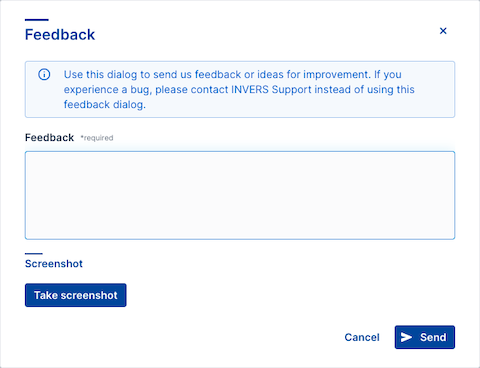
- Share feedback
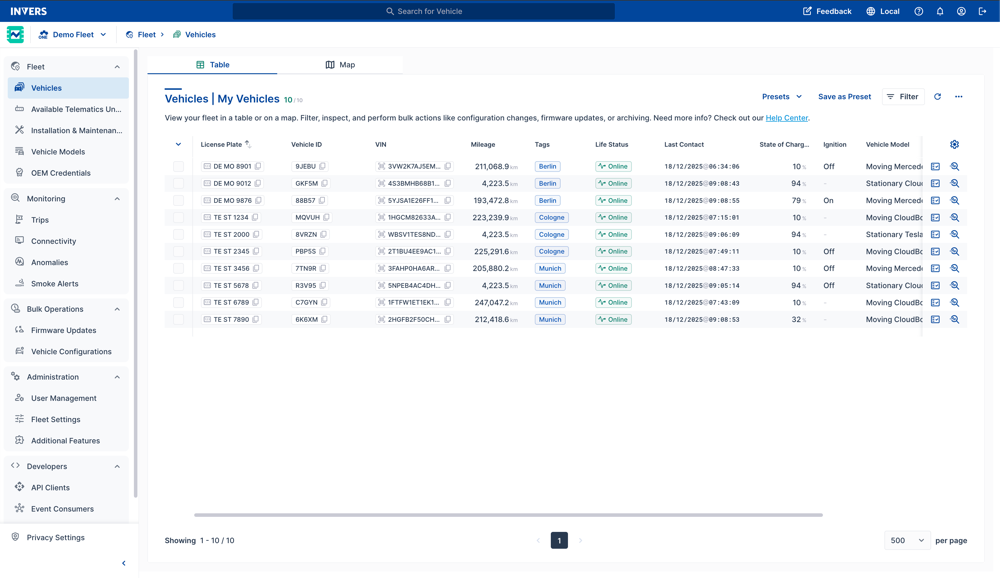
FleetControl is your central platform for managing connected vehicles in shared mobility operations. Monitor status, coordinate installations, review trips, and control access—whether you’re running 5 vehicles or 5,000.
What You Can Do⚓︎
Monitor vehicle status and health.
Find vehicles that need attention—whether that’s connectivity issues, maintenance flags, or conditions specific to your operations. Save filtered views as presets for quick access.
Coordinate installations and maintenance.
Create service jobs, assign them to technicians, and track progress from assignment through completion.
Review trips and events.
Understand vehicle usage through trip data and event timelines. See what happened, when, and where.
Control access and integrations.
Manage user permissions and generate API credentials for your own systems.
Getting Started⚓︎
First Time Here?⚓︎
- Accept your invitation and create your INVERS Login.
- Set your time zone in My Profile.
- Open the Vehicles page to see your fleet.
Need context first? Read the INVERS Ecosystem overview.
Find Your Starting Point⚓︎
| If you are a… | Start here |
|---|---|
| Fleet operator | Vehicles to monitor your fleet, then Trips and Events for usage data. |
| Installation coordinator | Installation & Maintenance to manage installations, Available Telematics Units for unassigned CloudBoxxes. |
| System administrator | User Management for access control, Fleet Settings for operational parameters. |
| Developer | API Clients for credentials, developers.invers.com for integration guides. |
Requirements⚓︎
To use FleetControl, you need:
- An active fleet (created during INVERS onboarding)
- An INVERS Login with appropriate permissions
Vehicles connect to FleetControl via CloudBoxx hardware or OEM integrations. For API development, simulated vehicles provide test data before physical installations begin.
Key Sections⚓︎
Fleet⚓︎
Manage vehicles and hardware installations.
- Vehicles – Search, filter, and manage vehicles in table or map view.
- Inspect – View detailed vehicle health and diagnostics.
- Events – Review vehicle events with timeline and location.
- Installation & Maintenance – Create and track installation and maintenance work.
- Available Telematics Units – Track unassigned hardware.
- Vehicle Models – Check supported models, compare details, and download installation instructions.
- OEM Credentials – Manage manufacturer integration credentials.
Monitoring⚓︎
Review operational data and vehicle events.
- Trips – View trip records with routes, duration, and events.
- Connectivity – Monitor telematics unit network status.
- Anomalies – Monitor vehicles flagged for unusual activity like towing or tampering.
- Smoke Alerts – Review smoking cases detected in your vehicles.
Bulk Operations⚓︎
Run actions across multiple vehicles at once.
- Firmware Updates – Coordinate CloudBoxx firmware deployments.
- Vehicle Configurations – Apply settings in bulk.
Administration⚓︎
Control system settings and user access.
- User Management – Invite users, assign permissions.
- Fleet Settings – Configure trip triggers, time zones, preferences.
- Additional Features – See which optional features are active and available for your fleet.
Developers⚓︎
Build integrations with FleetControl data.
- API Clients – Generate credentials for programmatic access.
- Event Consumers – Subscribe to vehicle event streams.
- API Documentation – Full reference at developers.invers.com.
Global Navigation⚓︎
Available from the top bar on any page:
- Vehicle search – Find vehicles quickly by license plate, VIN, or Vehicle ID.
- My Profile – Set your time zone and preferences.
- Two-Step Verification – Secure your account with MFA.
Optional Features⚓︎
FleetControl supports additional capabilities for vehicle monitoring and asset protection. These require activation and may need specific hardware.
Get Help⚓︎
Documentation – Search or browse articles in this Help Center.
Support – Contact INVERS for technical assistance. See Contact Support for available channels.
Feedback – Use the feedback button in FleetControl’s header to send ideas or suggestions for improvement. For bugs or technical issues, contact INVERS Support instead.
What’s New → – Recent updates and release notes.