Import Installation Jobs⚓︎
Create up to 1,000 installation jobs per CSV file. Upload additional files to create more.
What You’ll Need⚓︎
Required: A CSV file with at least one field populated per row. Any field works, even a list of fuel types.
Recommended: Include at least one vehicle identifier per row:
- License plate (
license_plate) - VIN (
vin) - Custom name (
custom_name)
Optional: Create a template beforehand to apply consistent master data and feature configurations across all imported jobs.
Quick Example⚓︎
Here’s what a simple CSV looks like:
license_plate,vin,vehicle_model_id
DE MO 1701,WBADT43452G297186,01JQ8JJCPKT5CGQSCJGADTP7ZY
DE MO 1702,WBADT43452G297187,01JQ8JJCPKT5CGQSCJGADTP7ZY
TE ST 1703,WBADT43452G297188,01JQ8JJCPKT5CGQSCJGADTP7ZY
That’s it. Three vehicles, ready to import. See more examples below.
Quick Start⚓︎
- Go to Fleet → Installation & Maintenance → Installation Jobs → New Job → Import.
- Select Select CSV File and choose your file.
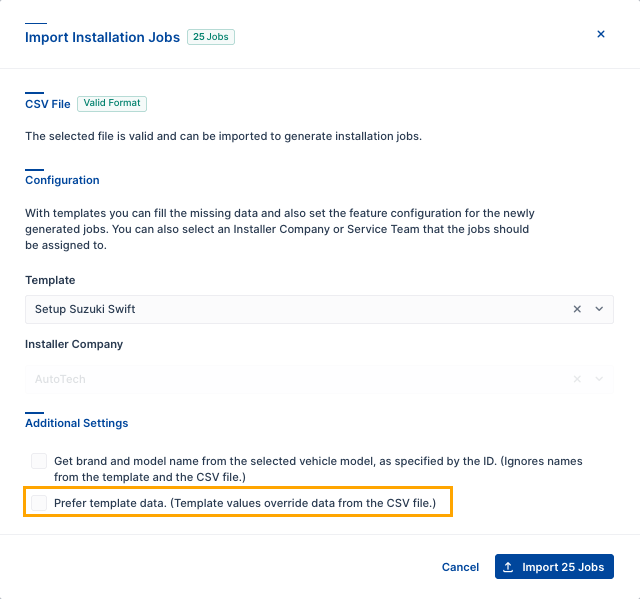
- Optional: Select a template from the dropdown.
- If the system detects conflicting data, you can choose “Prefer template data” to override your CSV values.
- Optional: Assign a service partner (this option is disabled if your CSV already includes an
assigned_installer_company_id). - Select Import Installation Jobs.
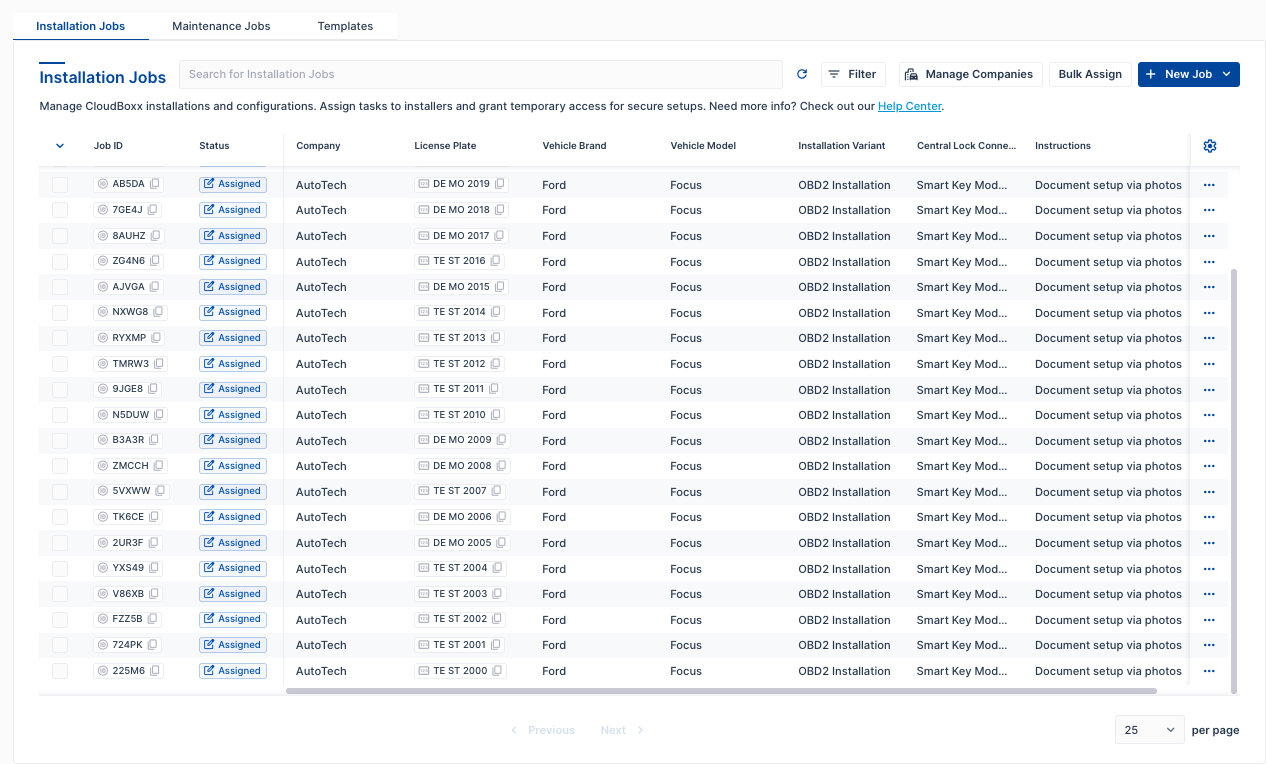
Your jobs appear in the Installation Jobs table, ready to be assigned or worked on by your service partner’s technicians.
Bulk Delete
Need to delete multiple jobs at once? Select them in the Installation Jobs table and select … → Bulk Delete.
After Import⚓︎
Jobs are automatically set to ASSIGNED status when:
- Your CSV includes
assigned_installer_company_id, or - You select a service partner in the import dialog
To assign jobs later: Select unassigned jobs and select … → Bulk Assign → Choose Service Partner → Submit.
File Format⚓︎
license_plate,vin,vehicle_model_id,installation_variant,central_lock_connection_type,fuel_type,instructions
XYZ-123,WBADT43452G297186,01JQ8JJCPKT5CGQSCJGADTP7ZY,CAN_INSTALLATION,DIRECT,ELECTRIC,"Take pictures after installation."
Requirements:
- Delimiter: Comma (
,) - Encoding: UTF-8
- Headers: Field names in first row
- Text with commas: Wrap in quotes
"Text, here" - Case-sensitive:
CAN_INSTALLATIONnotcan_installation
Available Fields⚓︎
Model-Dependent Fields
installation_variant and central_lock_connection_type can only be set when vehicle_model_id is present.
| Field | Format | Max Length | Notes |
|---|---|---|---|
license_plate |
Text | 70 chars | Must be unique in fleet. |
vin |
Text | 17 chars | Must be unique in fleet. |
vehicle_model_id |
Text | 40 chars | Copy from Vehicle Models. |
installation_variant |
CAN_INSTALLATION | OBD2_INSTALLATION |
— | Requires vehicle_model_id. Must be supported by the selected model. |
central_lock_connection_type |
DIRECT | LOMO | PID_LOMO | CAN_PID_LOMO | SKM |
— | Requires vehicle_model_id. Depends on model + installation variant. |
fuel_type |
GASOLINE | DIESEL | HYBRID | ELECTRIC | LPG | HYDROGEN | UNKNOWN |
— | — |
vehicle_type |
CAR | VAN | TRUCK | DEV_KIT | DOOR_OPENER | BUS | MOTORCYCLE | MOPED | SCOOTER | BIKE | KICKSCOOTER |
— | — |
transmission |
AUTOMATIC | MANUAL_SHIFT |
— | — |
brand |
Text | 70 chars | Auto-filled from vehicle model if not provided. |
model |
Text | 70 chars | Auto-filled from vehicle model if not provided. |
custom_name |
Text | 70 chars | |
year_of_production |
Text | 20 chars | “2025” |
instructions |
Text | 500 chars | Special notes for technicians. |
assigned_installer_company_id |
Text | 12 chars | Copy from the Partner & Teams dialog. |
Examples⚓︎
Example 1⚓︎
Perfect for bulk-adding vehicles of the same type:
license_plate,vin,vehicle_model_id
DE MO 1701,WBADT43452G297186,01JQ8JJCPKT5CGQSCJGADTP7ZY
DE MO 1702,WBADT43452G297187,01JQ8JJCPKT5CGQSCJGADTP7ZY
TE ST 1703,WBADT43452G297188,01JQ8JJCPKT5CGQSCJGADTP7ZY
Example 2⚓︎
Include installation specifics for different vehicle types:
license_plate,vin,vehicle_model_id,installation_variant,central_lock_connection_type,fuel_type,year_of_production
FORD-001,WBADT43452G297186,01JQ8JJCPKT5CGQSCJGADTP7ZY,OBD2_INSTALLATION,SKM,ELECTRIC,2022
SUZUKI-002,WBADT43452G297187,01GG9PCDT6BSZZ1Y5QG0J20EDZ,CAN_INSTALLATION,DIRECT,DIESEL,2021
AUDI-003,WBADT43452G297188,01K33NRC2EQ25NWNV8GQQ5487S,CAN_INSTALLATION,PID_LOMO,GASOLINE,2023
Example 3⚓︎
Maximum detail including service partner assignment and instructions:
license_plate,vin,vehicle_model_id,installation_variant,central_lock_connection_type,fuel_type,vehicle_type,year_of_production,custom_name,instructions,assigned_installer_company_id
DE MO 1701,WBADT43452G297186,01JQ8JJCPKT5CGQSCJGADTP7ZY,OBD2_INSTALLATION,SKM,DIESEL,CAR,2024,,Document setup via photos,2RSDF
DE MO 1702,WBADT43452G297187,01JQ8JJCPKT5CGQSCJGADTP7ZY,OBD2_INSTALLATION,SKM,GASOLINE,CAR,2024,,Document setup via photos,2RSDF
TE ST 1703,WBADT43452G297188,01JQ8JJCPKT5CGQSCJGADTP7ZY,OBD2_INSTALLATION,SKM,ELECTRIC,CAR,2022,,Document setup via photos,2RSDF
Templates⚓︎
Templates let you apply consistent settings to all imported jobs, including:
- Master data: Vehicle brand, model, fuel type, year of production, vehicle type, transmission
- Feature configurations: Auto Immo Control, Driving Events, Damage Detection, and more
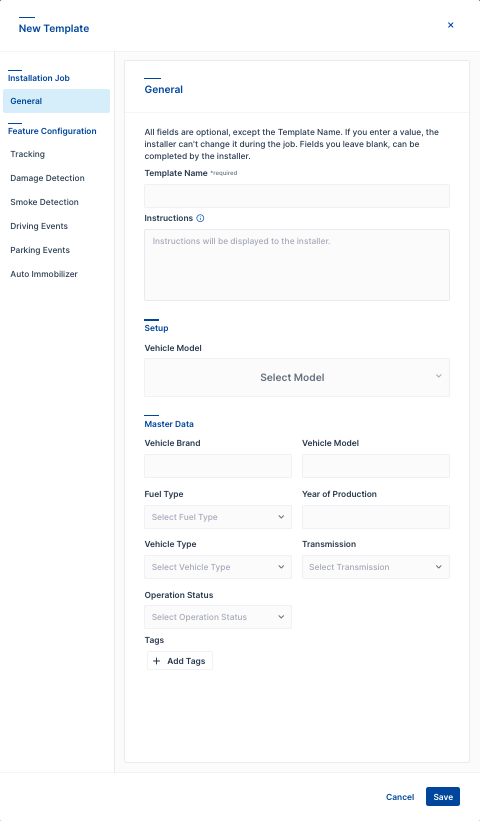
To create a template:
- Go to Fleet → Installation & Maintenance → Templates → New Template.
- Configure master data fields and feature settings.
- Select Save.
To use during import:
- Select the template from the dropdown in the import dialog.
- If your CSV and template have conflicting data (same field, different values), you’ll see the option “Prefer template data”.
- Select it to let template values override CSV values, or leave it unselected to let CSV values win.
Priority Rules⚓︎
When conflicts exist (same field has different values in CSV and template):
- “Prefer template data” checked: Template value is used.
- “Prefer template data” unchecked (default): CSV value is used.
When no conflicts exist:
- CSV values are used where present.
- Template values fill in missing fields.
- Fields not in either remain empty for the technician to fill in.
Best practice
Provide as much data as possible in your CSV or template to minimize decisions left to the technician. Fields left empty are filled in on-site — inexperienced technicians may enter incorrect values, leading to configuration errors or installation failures.
Example
Your template has fuel_type: DIESEL and CSV row has fuel_type: ELECTRIC:
- The “Prefer template data” option becomes available
- ✓ Checked → Job gets
DIESEL - ☐ Unchecked → Job gets
ELECTRIC
Validation Rules⚓︎
Uniqueness
- License plate must be unique within your fleet.
- VIN must be unique within your fleet.
Format
- Text fields are checked against length limits.
- Enum values are case-sensitive (e.g.,
CAN_INSTALLATIONnotcan_installation). - VIN follows standard vehicle identification patterns.
Logic
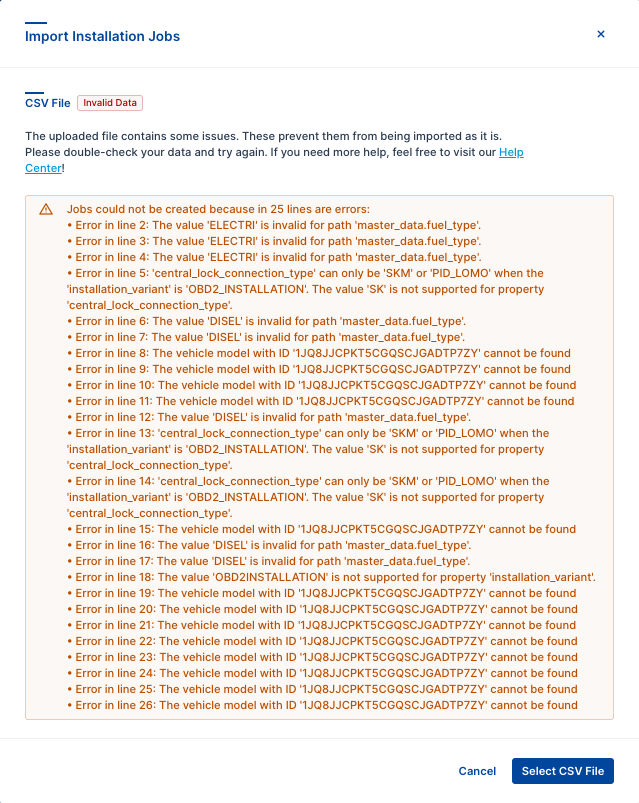
- Vehicle model must exist in your fleet and be accessible.
installation_variantandcentral_lock_connection_typemust not be set unlessvehicle_model_idis present in the same row.- Installation variant must be supported by the vehicle model.
- Central lock connection type must be compatible with model and variant.
- Service partner must have ACCEPTED status with your fleet.
When validation fails, FleetControl shows which row caused the error and why. Correct the errors in your CSV file and import again.
Prepare Your CSV⚓︎
From Excel⚓︎
- File → Save As → CSV.
- Choose UTF-8 encoding.
- Done.
Testing⚓︎
- Start small: Import 5-10 vehicles first.
- Verify results in FleetControl.
- Once working, import full batch.